

Monitors
The Naxai Monitors service lets you automatically track your traffic (SMS and voice calls) and receive alerts when configurable thresholds are exceeded. The monitoring is done at the subaccount level.
Use monitors to detect abnormal volumes early (e.g. fraud, configuration issues, delivery problems) and react before they impact your users.
Key concepts
Channels
You can currently monitors the outgoing SMS and voice calls.
For SMS, it is possible to monitor:
- The number of SMS sent
- The number of SMS rejected
- The number of SMS canceled
- The number of SMS blocked
- The total number of SMS
- The total amount billed for SMS
For Voice calls, it is possible to monitor:
- The number of delivered calls
- The number of failed calls
- The total number of calls
- The total amount billed for SMS
Metrics
A monitor evaluates its metric over a given period. Available periods:
- the current day, the metric is evaluated roughly every 15mn
- the last 7 days, the metric is evaluated roughly every hour
- the last 30 days, the metric is evaluated roughly every 4 hours
Alerts
An alert is sent via email to up to 3 recipients, or posted to a URL when the metric goes beyond the configured treshold.
An alert is cleared when the metric goes again below the treshold, and the monitor will trigger a new alarm when crossing it again.
When posted to a URL, the alert data is structured as below:
{
    "monitorId": "7362ba15-caae-4289-b4f5-cdeec345b144",
    "subaccountId": "5dfec449-7171-4ece-b87b-c9ab2e7ea9b5",
    "monitorName": "Monitor SMS",
    "monitorCategory": "SmsRejected",
    "monitorThreshold": 1,
    "monitorPeriod": "Day",
    "monitorType": "Usage",
    "value": 2
}
Configuring a Monitor
To configure a Monitor, you should define the fields on the form below:
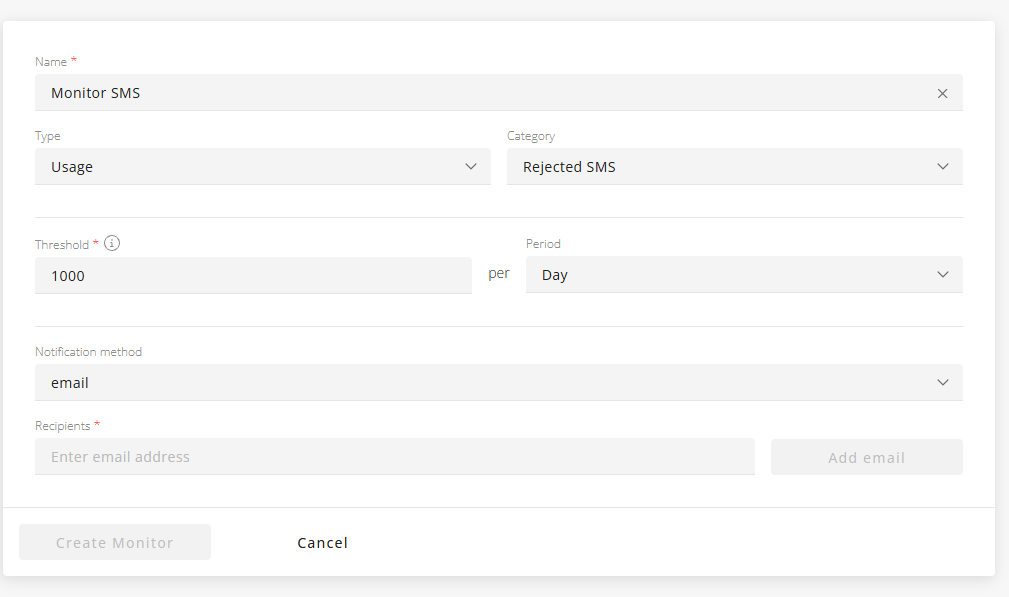
When configuring a monitor, you should specify:
- The monitor name
- The type of monitor:
- Select "Usage" to monitor the quantity of SMS or calls
- Select "Billed amount (€)" to monitor the billed amount of your SMS or calls
- The category of monitor
- This field allows you to specific the metric you would like to monitor
- The treshold:
- The alert is triggered when the metric goes beyond this value
- The period of evaluation of the metric
- The notification method, where you can specify up to 3 email recipients for the alert or a URL
Listing your Monitors
On the Monitors page, you can see all your monitors:
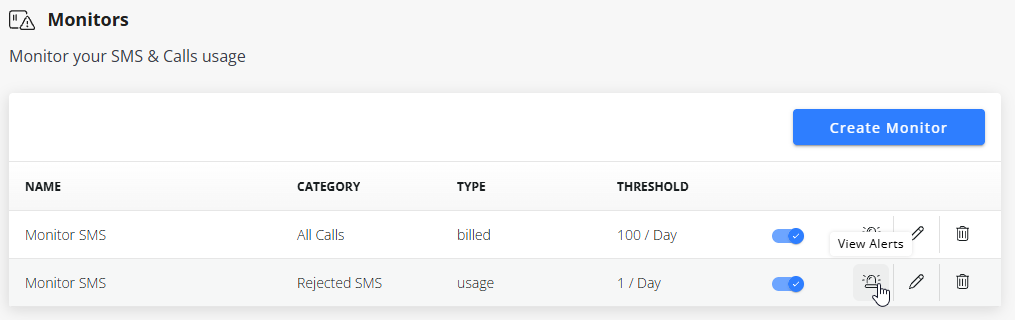
From the list, you can:
- Temporarily enable/disable your Monitor
- Edit your Monitor
- View the last 10 alerts of your Monitor
- Delete your Monitor
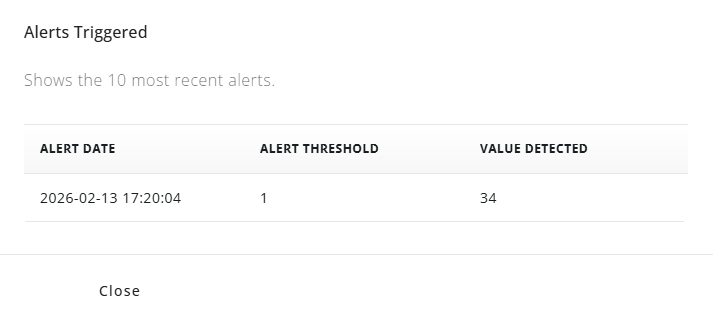
Viewing Alerts
You can also see the last 10 alerts triggered when clicking on the "view alerts" icon:
Updated 8 months ago